

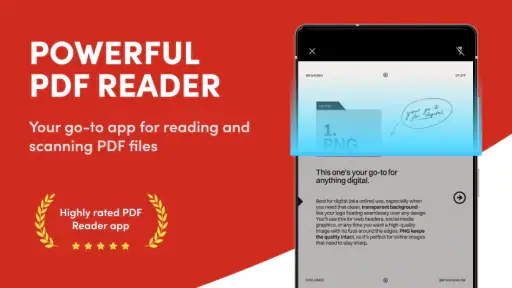
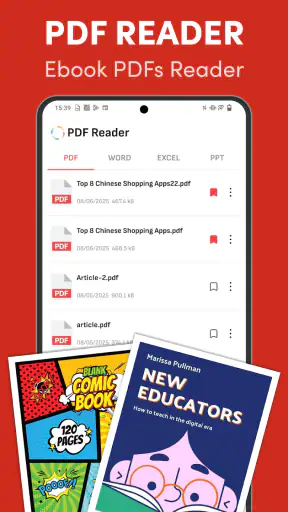
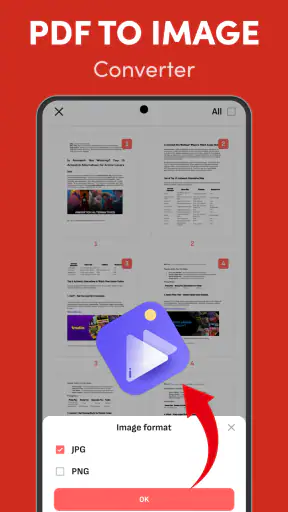
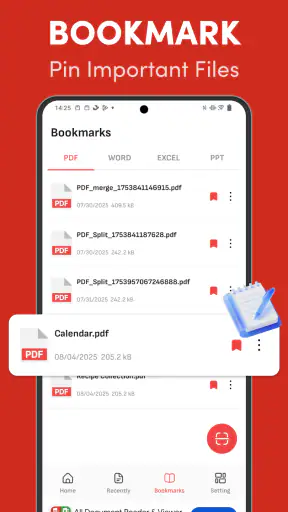
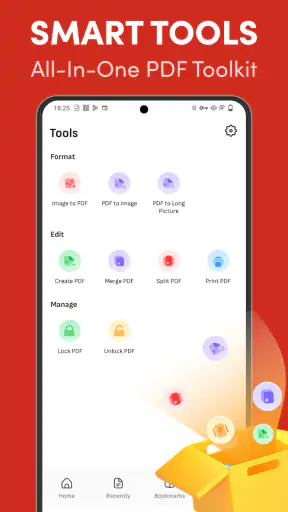
PDFReader - View & Manage is the kind of productivity app I reach for when I need to open a document quickly rather than build an entire document-management system around it. Its main appeal is straightforward: it brings PDF reading together with support for viewing Excel files and sharing documents from one place. That combination makes it useful on a phone, especially when a file arrives in a message and I do not want to switch between several apps just to check it.
Developed by Gift School, the app is free and aimed at everyone. It has earned a 4.8 average from around 46 thousand ratings and has passed one million installs, which gives it a reassuring level of everyday adoption. I would describe it as a practical reader first, with a few management-oriented conveniences around that central job. It is not trying to replace a full desktop office suite, and understanding that distinction helps set the right expectations.
Why the quick document view matters
The most useful capability here is not simply opening a PDF. It is the reduced friction between receiving a file, checking its contents, and deciding what to do next. On a mobile device, that small chain of actions matters. A PDF can be a timetable, an invoice, a school handout, a form, or a work reference. In many cases, I only need to confirm one detail before sharing it or putting the phone away.
PDFReader - View & Manage focuses on that moment. Instead of treating a PDF as an attachment that must be passed through several unrelated tools, it gives the document a dedicated viewing space and includes Excel viewing in the same general workflow. That is particularly handy for people who regularly receive mixed office files but do not want a large, complicated office package for occasional reading.
The store summary presents it as a fast PDF reader and PDF expert app, with Excel viewing and sharing included. In my experience, the important word is “reader.” The app makes the most sense when the job is inspection, reference, and distribution. If I need to create a spreadsheet with formulas, make extensive PDF edits, or collaborate on a document with other people, I would look for a more specialized tool.
That focus is also what makes the app approachable. There is less mental overhead when the first question is simply, “Can I open this file and understand it?” For a phone user who does not want to learn a full office suite, a focused reader can be more comfortable than an application packed with editing ribbons, templates, and account-based workflows.
What viewing a file feels like in daily use
A realistic example is a travel or workday situation. Someone sends me a PDF schedule and an Excel attachment in the same conversation. I open the documents to check a time, compare a few cells, and then share the relevant file with another person. The value is not dramatic, but it is real: I can handle both formats without treating the phone as a miniature desktop computer.
That workflow also reveals an important distinction between reading and editing. A mobile screen is excellent for confirming a page, scanning headings, checking a number, or showing a document to someone nearby. It is less pleasant for long-form editing, careful layout work, or navigating a large worksheet. The app is therefore strongest when it helps me answer a question about a file, not when I expect it to become my main office environment.
Sharing deserves attention because it changes the app from a passive viewer into a small handoff tool. After checking a document, I may need to send it onward rather than leave it open. Keeping the view-and-share steps close together is useful for school groups, family paperwork, receipts, and workplace attachments. I still recommend checking the selected file before sending, particularly when several similarly named documents are stored on the phone.
A practical workflow for fewer mistakes
My preferred way to use this kind of app is to pause at three points: identify the file, inspect the important page or cells, and only then share it. That sounds obvious, but mobile file lists can become confusing when downloads have generic names. I would rename or organize important documents outside the reading moment where possible, then use the app for the quick confirmation.
For PDFs, I start by scanning the opening page and then jumping through the document to locate the section I actually need. I do not read every page on a small screen unless the document is short. For spreadsheets, I first identify whether I am checking a label, a date, or a value. That prevents the common mistake of treating a phone preview as if it were a complete spreadsheet audit.
Another useful habit is to use the app as a temporary checkpoint rather than a permanent archive. Once I have finished with a document, I decide whether it belongs in a dedicated folder or cloud service. This keeps the reader’s file list from becoming a second, poorly organized storage system. The app helps me access files; it does not remove the need for a sensible filing routine.
The strongest scenario: mixed attachments on a phone
The clearest audience is someone who receives documents in several formats and values speed over advanced editing. Students checking course material, freelancers reviewing client PDFs, families handling forms, and employees confirming a spreadsheet while away from a computer can all benefit from the compact workflow.
Imagine a student receives a PDF assignment brief and an Excel schedule before leaving home. The student can open the brief, verify the deadline, inspect the schedule, and share the correct file with a classmate. The app is helpful because the task is about access and confirmation. There is no need to launch a heavyweight editor merely to answer “Which date applies?”
The same pattern works for household administration. A bill arrives as a PDF, while a budget arrives as a spreadsheet. I can view each document, compare the relevant information, and pass one of them to a family member. The benefit is not advanced financial analysis; it is having a simple place to look at both file types when the need is occasional.
For work, I see value in quick reference situations: checking a meeting handout, opening a product sheet, or reviewing a table before a call. I would not use it as the only tool for sensitive professional document processes without first understanding how the surrounding device and storage setup handle those files. A reader can be convenient while still requiring normal care with confidential material.
Where it compares well with usual alternatives
The usual alternatives fall into two groups. The first is the phone’s built-in file or document viewer, which may be enough for a single PDF but can feel inconsistent when different formats arrive. The second is a full office suite, which generally offers more editing power but can feel excessive for a quick look.
This app occupies the middle ground. Compared with a basic viewer, its emphasis on PDFs alongside Excel viewing and sharing makes it more useful for mixed attachments. Compared with a full office suite, it is easier to approach when I only want to read rather than modify. That trade-off is the central reason to choose it.
However, “middle ground” also means it will not satisfy every reader. If I need tracked changes, advanced spreadsheet formulas, document creation, annotation tools, or deep cloud collaboration, a dedicated office or PDF editing application is likely the better choice. The right comparison is not which app has the longest feature list; it is which one matches the task I actually have.
Trade-offs I noticed before making it a regular tool
The first limitation is the natural constraint of phone-based viewing. A large PDF or wide spreadsheet can be awkward to inspect on a narrow display. Zooming and scrolling are acceptable for occasional checks, but they become tiring during long sessions. For serious reading, a tablet or computer remains more comfortable.
The second trade-off is between simplicity and control. A focused reader can be quicker than a full office application, but it may not offer the same depth of editing or document workflow options. I would not install this expecting it to replace every PDF utility on my device. I would install it when opening and sharing are more important than transforming the file.
The third is organizational discipline. Any app that gathers documents into a convenient viewing workflow can encourage me to leave files scattered across downloads and message attachments. I get the best results when I treat the app as the place where I inspect documents, while using my existing storage habits to keep important files in order.
There is also a practical reason to avoid assuming that viewing equals editing. A spreadsheet may display the information I need while still being unsuitable for changing a formula or validating a complex workbook. Likewise, a PDF may be easy to read but not ready for signing, annotating, or rearranging. I would choose the next tool based on the action required after reading.
Who will gain the most from the app
The best fit is a reader who wants a fast, uncomplicated way to inspect PDFs and occasional Excel files on a mobile device. That includes people who often receive attachments but do not edit them every day. The free price makes it easy to try for this role, and the Everyone age rating keeps its intended audience broad.
I think it is especially suitable for users who find full office suites intimidating or unnecessarily busy. A person who only needs to open a document, check a detail, and share it can benefit from a narrower tool. It also makes sense as a backup reader for anyone whose default file handling feels unreliable with mixed attachments.
On the other hand, professionals who live in spreadsheets, editors who need detailed PDF controls, and teams that depend on collaborative document management should look elsewhere or use this only as a secondary viewer. The app’s value comes from convenience, not from replacing a complete productivity stack.
Device compatibility is another practical consideration. The current version is 1.3.6 and supports Android from version 7.1 onward, so it is accessible to many older devices as well as newer ones. I would still judge the experience on the phone’s screen size and available storage, because those factors affect document handling more directly than the version label alone.
My recommendation after using it
Gift School has made a useful choice by centering the experience on document access rather than pretending that a phone should handle every office task equally well. The combination of PDF reading, Excel viewing, and sharing addresses a specific everyday problem: mixed files arriving when I am away from a computer.
I recommend PDFReader - View & Manage to anyone who wants a free productivity app for quick checks, casual reference, and straightforward sharing. I would skip it as a primary tool if my work depends on advanced editing, collaboration, or long reading sessions. Used within its real strength, it is a practical bridge between receiving a document and deciding what to do with it.


